When can you edit a tour
You are able to edit a tour at three different stages in the Vieweet° app, when:
- Reviewing a tour
- A tour is in Drafts
- A tour is completely uploaded
If you want to edit an entire tour, you can tap the

to display the menu to edit your entire tour in the studio mode
If you like to edit a specific image in the tour, you can tap and hold that specific room thumbnail and you will get prompted with a list of options (which are explained below).
Rename a tour
Tap on a tour title in Review Your Tour, an opened Draft tour or a Tour Profile.
You will be prompted with a popup to rename and confirm the change.
Replace an image
You are able to replace an image, by capturing a new image with your camera or importing from your photo album. When you replace an image, the room label will stay the same.
After replacing an image, you will be asked if you want to keep the existing links (in their original locations) or replace with new ones. Choosing to replace will delete all existing links.
Please note: links from other images will not be affected, but you may need to add return links if you have chosen to replace them.
Edit links
Add or remove as many links as you would like within a chosen image. You can finish the tour, or continue capturing more images.
Select a starting point
You can set the angle at which you would like your virtual tour to start at, by moving left or right within the screen. Tap Select Starting Point when done.
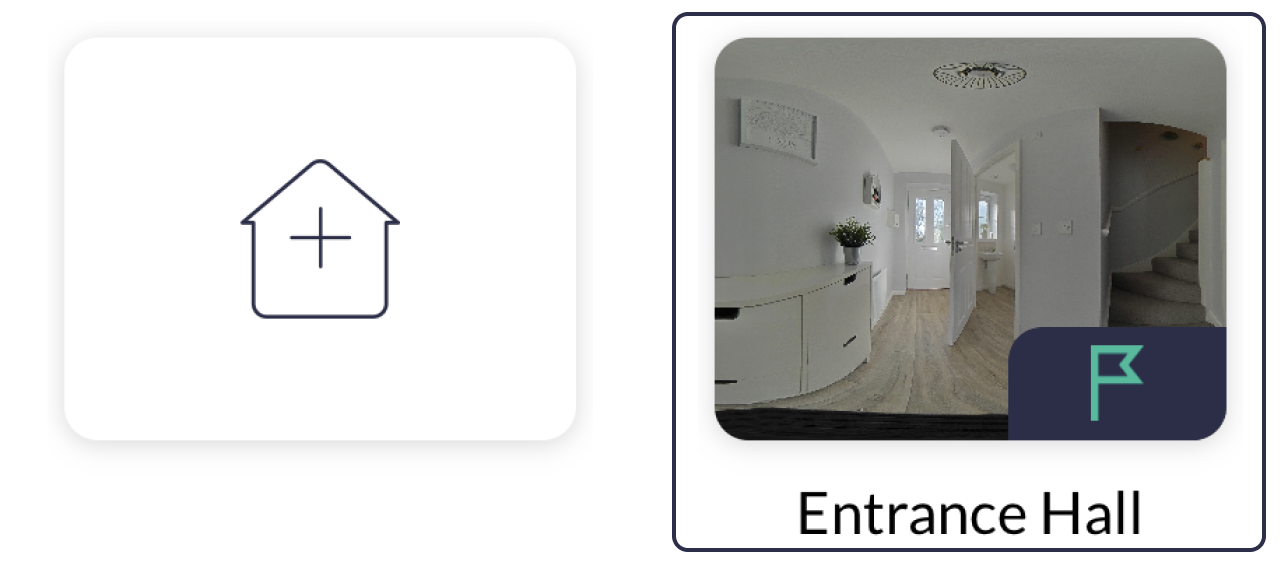
Make starting image
Tap and hold the image thumbnail that you would like to make the starting image. After you have chosen the Make starting image option, then you should see the

symbol on the thumbnail. This symbol means that this will be the first image for your virtual tour.
Delete image
Deleting an image will cause all related links to be deleted along with the chosen image.
Please note: when you delete an image, it is permanently deleted and cannot be recovered.