How do I create a new link?
Tap and hold the area you want to link to be for 1 second.
You will then be prompted to choose a destination (a new room or your existing rooms).
How do I reposition a link?
After creating a new link, you can tap anywhere on the screen to reposition it.
You can reposition the link only before selecting a destination.
If the destination is already chosen, you need to delete the link to create a new one.
How to delete a link?
Double-tap on an existing link to delete it.
Note: deleting a link will hide the label list and allow you to navigate around the tour.
Return links
A return link is the connection back to the previous image.
We have created return links to help you link your tours efficiently as you capture your images.
For example: If you have created a link from the bedroom to the bathroom, the return link is from the hallway back to the kitchen.

How do I add more link(s) on an old image?
Click on the

icon (at the bottom left corner) and select the room where you want to add more link(s).
Tap for 1 second on the image to create the new link.
Your Links
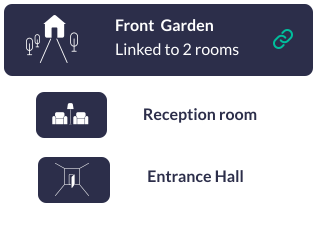
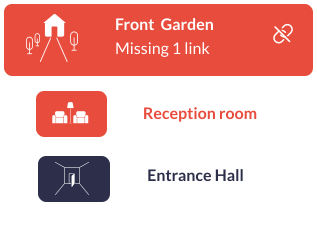
Your Links is a tab that shows you all the link connections among the rooms.
During your tour creation, if you see

this means you are missing a link.
Tap the icon and Your Links tab will displayed.
If a link (or more) is missing the room icon(s) will appear in red - tap on the red icon to go to the studio screen for that specific image to create the missing link(s).
When all the links have been created the room icons will be displayed with a green link symbol and no action is required.